How to Build Custom Gutenberg Blocks with ACF Pro (Step-by-Step)
This ACF blocks tutorial builds one real block from nothing: a callout with a heading, some text and a button. You’ll register it with block.json, add fields, write the template, handle the editor preview and load its styles only where it’s used. Then we’ll cover nested content with InnerBlocks.
We build these all day as part of our custom Gutenberg block development service for agencies. Everything below ran on WordPress 7.1 with ACF Pro 6.8.10, and the block output you see further down is copied from that test. It uses ACF Blocks V3, which needs ACF Pro 6.6 or later. If you’re running older code, the ACF changelog explains what’s different.
When ACF blocks make sense
ACF blocks fit designed sections with structured content: heroes, feature grids, testimonials, team lists, CTAs. The kinds of things that come out of a Figma file. You write PHP, you get ACF’s field types for free, and editors get a form that’s hard to misuse.
They fit less well when the editing itself is the feature, such as a block that editors drag around and restructure on the canvas. Then, or when you can’t require a paid plugin, a native block is the better option. We go through that decision in ACF blocks vs native Gutenberg blocks.
What this ACF blocks tutorial builds
Keep each block in its own folder. The theme stays tidy, and moving a block to another project means copying one directory.
your-theme/
├── functions.php
├── acf-json/
│   └── group_callout.json
└── blocks/
    └── callout/
        ├── block.json
        ├── render.php
        └── style.css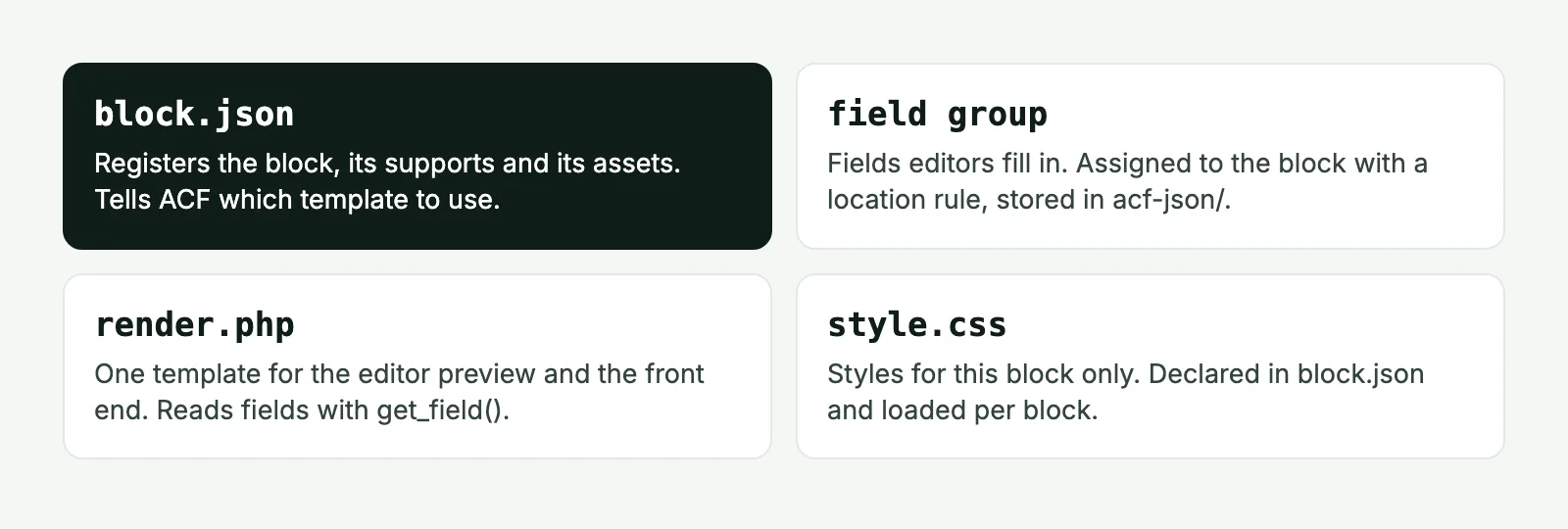
Register the block with block.json
Create blocks/callout/block.json:
{
  "$schema": "https://schemas.wp.org/trunk/block.json",
  "apiVersion": 3,
  "name": "acf/callout",
  "title": "Callout",
  "description": "A heading, short text and one button.",
  "category": "design",
  "icon": "megaphone",
  "keywords": [ "cta", "banner" ],
  "supports": {
    "anchor": true,
    "align": [ "wide", "full" ],
    "color": { "background": true, "text": true }
  },
  "style": [ "file:./style.css" ],
  "acf": {
    "blockVersion": 3,
    "mode": "preview",
    "renderTemplate": "render.php"
  }
}
Most of this is standard WordPress. The acf key is ACF’s addition. blockVersion: 3 opts in to V3, which keeps the rendered preview on the canvas and moves fields to the sidebar and a pop-out panel. ACF has changed its default version between releases, so set this explicitly. Then you won’t be surprised after an update.
The $schema line adds autocomplete in VS Code and has no effect at runtime. Keep it.
Then register the block in functions.php:
add_action( 'init', function () {
	register_block_type( get_theme_file_path( 'blocks/callout' ) );
} );
Pass the folder, not the file. WordPress finds block.json on its own. If you have many blocks, loop over glob( get_theme_file_path( 'blocks/*' ), GLOB_ONLYDIR ) so a new folder registers itself.
The block now appears in the inserter. It has nothing to show yet.
Field group setup
You can set this up in the admin: ACF → Field Groups → Add New, then add these fields:
| Label | Name | Type | Required |
|---|---|---|---|
| Heading | callout_heading | Text | Yes |
| Text | callout_text | Textarea | No |
| Button | callout_link | Link | No |
Under Settings → Location Rules, choose Block, is equal to, Callout. Save.
If your theme has an acf-json folder, ACF writes the group there as JSON on each save. Commit it. Your field groups now travel with the code, and other environments get a sync prompt rather than silently falling out of step. We won’t start a project without this.
You can also define the group in PHP, which suits blocks that ship in a plugin:
add_action( 'acf/include_fields', function () {
	acf_add_local_field_group( array(
		'key'      => 'group_callout',
		'title'    => 'Callout block',
		'fields'   => array(
			array(
				'key'      => 'field_callout_heading',
				'label'    => 'Heading',
				'name'     => 'callout_heading',
				'type'     => 'text',
				'required' => 1,
			),
			array(
				'key'   => 'field_callout_text',
				'label' => 'Text',
				'name'  => 'callout_text',
				'type'  => 'textarea',
			),
			array(
				'key'   => 'field_callout_link',
				'label' => 'Button',
				'name'  => 'callout_link',
				'type'  => 'link',
			),
		),
		'location' => array(
			array(
				array(
					'param'    => 'block',
					'operator' => '==',
					'value'    => 'acf/callout',
				),
			),
		),
	) );
} );
A naming habit that pays off: prefix field names with the block name. heading seems fine until two blocks need different rules for it, or someone searches the code for where it’s used.
Template and styles
Create blocks/callout/render.php:
<?php
/**
 * Callout block.
 *
 * @var array $block      Block settings and attributes.
 * @var bool  $is_preview True inside the block editor.
 */

$heading = get_field( 'callout_heading' );
$text    = get_field( 'callout_text' );
$link    = get_field( 'callout_link' );

if ( ! $heading && $is_preview ) {
	$heading = 'Add a heading';
}
?>
<section <?php echo get_block_wrapper_attributes( array( 'class' => 'callout' ) ); ?>>
	<h2 class="callout__heading"><?php echo esc_html( $heading ); ?></h2>

	<?php if ( $text ) : ?>
		<p class="callout__text"><?php echo esc_html( $text ); ?></p>
	<?php endif; ?>

	<?php if ( $link ) : ?>
		<a class="callout__button" href="<?php echo esc_url( $link['url'] ); ?>" target="<?php echo esc_attr( $link['target'] ?: '_self' ); ?>">
			<?php echo esc_html( $link['title'] ); ?>
		</a>
	<?php endif; ?>
</section>
Inside the template, get_field() reads from the current block automatically, so there’s no post ID to pass. A few things worth doing from day one:
get_block_wrapper_attributes() goes on the outermost element. It outputs the block’s class, the anchor ID, and the alignment and color classes from supports. Leave it out and those sidebar controls will appear to do nothing.
Escape on output. esc_html for text, esc_url for links, wp_kses_post if a field holds HTML. It’s still your job, even when the only person typing is a trusted editor.
Every optional field gets a condition, so you never output an empty <p> or a button with no link.
Fed with test data, the template produced this:
<section class="callout align wp-block-acf-callout">
	<h2 class="callout__heading">Moving a client site?</h2>
	<p class="callout__text">Tell us.</p>
	<a class="callout__button" href="/contact/" target="_self">Contact</a>
</section>
The wp-block-acf-callout class comes from WordPress. Your own callout class is what the styles should hang on.
Add blocks/callout/style.css:
.callout {
	padding: 32px;
	border-radius: 12px;
}

.callout__heading {
	margin: 0 0 12px;
}

.callout__button {
	display: inline-block;
	margin-top: 16px;
}
Use theme variables here rather than fixed values if your theme has them, so that a block won’t look foreign on the site.
Would you rather hand this off? We turn your designs into custom Gutenberg blocks, with 1 to 5 hours per block, delivered under your brand.
Editor preview
With mode: preview, the editor renders your PHP in place, with the same template the visitor sees. Styles from style load in the editor too. In apiVersion: 3 blocks, the editor can run in an iframe, so any CSS in the theme’s front-end stylesheet won’t reach the block unless you add it with add_editor_style(). This trips up nearly everyone once.
Two small things improve the experience:
The $is_preview variable lets you show a hint in the editor that visitors never see, as we did with “Add a heading”. Without something like that, a new empty block is an invisible strip, and editors can’t work out where they clicked.
You can also add example data to block.json, so the block shows a thumbnail in the inserter:
"example": {
  "attributes": {
    "mode": "preview",
    "data": {
      "callout_heading": "Moving a client site?",
      "callout_text": "Tell us about it."
    }
  }
}
If your template outputs scripts, a slider for example, it may need extra code to initialize in the editor. Disable or simplify the interactive part when $is_preview is true. Clients don’t need a running carousel when they’re trying to edit its captions. If a preview is too heavy to be useful, "renderPreview": false in the acf key shows a placeholder with an edit button instead.
InnerBlocks with ACF
Fields aren’t always the right answer. For a block that wraps other content, such as a card or a two-column section, let editors use normal blocks inside it. Turn on JSX support in the block’s block.json:
{
  "$schema": "https://schemas.wp.org/trunk/block.json",
  "apiVersion": 3,
  "name": "acf/card-grid",
  "title": "Card grid",
  "category": "design",
  "icon": "grid-view",
  "supports": { "jsx": true },
  "acf": {
    "blockVersion": 3,
    "mode": "preview",
    "renderTemplate": "render.php"
  }
}
Then write <InnerBlocks /> in the template. It looks like JSX, and ACF handles it:
<?php
$allowed  = array( 'core/heading', 'core/paragraph', 'core/image' );
$template = array(
	array( 'core/heading', array( 'level' => 3, 'placeholder' => 'Card title' ) ),
	array( 'core/paragraph', array( 'placeholder' => 'Card text' ) ),
);
?>
<div <?php echo get_block_wrapper_attributes( array( 'class' => 'card-grid' ) ); ?>>
	<InnerBlocks
		allowedBlocks="<?php echo esc_attr( wp_json_encode( $allowed ) ); ?>"
		template="<?php echo esc_attr( wp_json_encode( $template ) ); ?>"
	/>
</div>
The front-end output from our test:
<div class="card-grid align wp-block-acf-card-grid">
	<div class="acf-innerblocks-container"><p class="wp-block-paragraph">inner ok</p></div>
</div>
Notice the extra acf-innerblocks-container div. ACF adds it around the inner content, and your CSS needs to allow for it. If the outer element is a grid, its children aren’t the cards, they’re this one container, so put the grid on .acf-innerblocks-container instead. A block can have only one <InnerBlocks />.
Loading assets per block
Declaring CSS in block.json instead of the theme stylesheet has a practical benefit. WordPress registers one style handle per block (we got acf-callout-style in our test), and it can load that file only on pages where the block appears. On WordPress 7.1, on-demand loading was on by default for the classic theme we tested with. On older versions and some classic setups you may need:
add_filter( 'should_load_separate_core_block_assets', '__return_true' );View the page source of a page without the block to confirm that its stylesheet isn’t there. Don’t take it on faith, because a plugin or caching setup can change the behavior.
JavaScript works the same way. For a script that runs on the front end:
"viewScript": "file:./view.js"WordPress prints that script only when the block renders. For a dependency that’s already registered, use its handle instead of a file path: "viewScript": [ "swiper", "file:./view.js" ].
Be careful with blocks used on nearly every page. Separate files for something that shows up everywhere only add requests, and a critical above-the-fold hero is usually better off with its CSS in the main stylesheet or inlined. We make this call per block.
When something doesn’t work
Most first-block problems come down to the same few causes.
The block isn’t in the inserter. Check that register_block_type() runs on init and gets the folder path, and that block.json is valid JSON. One trailing comma and the whole block silently fails to register. To check from the command line, run wp eval "var_dump( WP_Block_Type_Registry::get_instance()->is_registered( 'acf/callout' ) );".
Fields don’t show up. Look at the field group’s location rule first, then remember that V3 moved fields out of the block itself. Select the block and open the settings sidebar, or click the pencil icon in the toolbar.
The alignment or color controls do nothing. The template is missing get_block_wrapper_attributes() on its outer element.
The front end looks right and the editor doesn’t. That’s nearly always the iframe issue from the preview section.
Old values are lost after you rename a field. Block data is stored by field name, so a rename orphans what’s already saved. Pick names carefully the first time, or plan for a small migration.
What to do next
Copy the folder, change the name and the fields, and you have your second block. After three or four, you’ll notice what repeats: spacing options, heading markup, button partials. Pull those into template-parts before they spread.
Before you hand a set of blocks to a client’s editors, try to break each one on purpose. Leave every optional field empty, paste a 400-word heading and upload a portrait image where the design assumed landscape. It’s much cheaper to find that now.
If you have Figma designs and would rather not write a library yourself, send them over. We’ll list the blocks with hours per block, and you can decide from there.
ACF blocks FAQ
Yes. The block feature is part of ACF Pro, and ACF Blocks V3 needs version 6.6 or later. The free version of ACF can’t register blocks.
Not for new blocks. It still exists, but block.json is the current way to register blocks and matches how WordPress core does it. Convert older blocks when you next touch them.
The field group’s location rule isn’t matched, or it’s targeting a different block. Check the group’s location is set to Block, is equal to your block’s title, and check that the Local JSON was synced if you work across environments.
You can point several block.json files at shared partials, and that’s often a cleaner approach than one big template with lots of conditions. Each block gets its own folder and metadata, and the shared markup goes in a partial.
Copy the block folder and the field group JSON. If the blocks need to work across themes, package them as a small plugin rather than keeping them in the theme.