How to Migrate a WordPress Site to a New Host With Zero Downtime
Most hosting moves don’t need any downtime at all. To migrate WordPress to a new host cleanly, you build a working copy on the new server, test it under the real domain while the public still sees the old one, and only then point DNS at it. For a while both servers answer, and visitors can’t tell which one they hit.
This guide covers the host-to-host case with commands we run on real moves. If you’d like someone else to run them, that’s our WordPress migration service. For the wider project (redirects, baselines, what to check a month later), use our WordPress migration checklist.
One caveat up front. “Zero downtime” is honest for a brochure site or a blog. On a store, there’s a data problem rather than a downtime problem, and we cover that further down.
Choose how to migrate WordPress to a new host
There are three common ways to do this. Pick by the size of the site and how much you trust the source server.
| Method | Good for | Where it falls down |
|---|---|---|
| Host’s migration plugin | Small and medium sites going to WP Engine, Cloudways or Kinsta | Blocked by firewalls, timeouts on cheap source hosts |
| General plugin (All-in-One WP Migration, Duplicator) | A quick copy for testing | Upload limits on big archives, custom tables and paths |
| Manual with WP-CLI and rsync | Large sites, stores, anything fussy | Needs SSH on both servers |
We default to the manual route when both servers have SSH. It takes a little longer to set up, but it fails loudly, and you can rerun any step. With a plugin, a failure at 87% is often just a spinner.
WP Engine
WP Engine’s Site Migration plugin goes on the source site and pushes everything to the new environment. By default, a full-site migration copies the database and wp-content, skips logs, backups and caches, and updates domain references. A few things to plan for:
- Root-level files, such as a verification file or a custom script, only come along in a custom migration.
.htaccessand NGINX rules don’t transfer. Recreate them in the Web Rules Engine.- Security plugins with a firewall can rate-limit the migration. Cloudflare’s “Under Attack” mode and basic auth on the source can stop it from starting.
- Multisite works only if the destination was converted to multisite first.
You can run the plugin a second time just before the DNS switch to catch recent content.
Cloudways
Cloudways has its own WordPress Migrator plugin, and new applications get a temporary cloudwaysapps.com URL you can use for testing. Give the plugin that temporary URL as the destination, not the real domain. You add the real domain to the application later, so check for leftover temporary URLs in the database after you go live. Cloudways runs Varnish by default, so if you see stale pages while testing, turn it off for the application and turn it back on before launch.
Prepare the new server
Match the old environment before you copy anything, then upgrade after. Moving hosts and changing PHP versions at the same time means that when something breaks, you have two suspects.
Read the old settings:
wp core version
wp eval 'echo PHP_VERSION;'
wp db size --human-readable
wp plugin list --status=active --fields=name,version
wp cron event list
On the new server, set the same PHP major and minor version, create an empty database and user, and install WordPress core at the same version if you’re going manual. Check the memory limit, max_execution_time and upload_max_filesize, and compare them with the old server.
Look for anything that depends on the old host:
object-cache.phporadvanced-cache.phpinwp-content. These drop-ins point at the old server’s Redis or cache setup and can white-screen the new one. Delete them on the new copy and let the plugin regenerate them.- Host-specific plugins and must-use plugins. SiteGround’s and GoDaddy’s are the ones we run into most. WP Engine will also refuse some plugins outright, so read its disallowed list before the move.
- Hard-coded paths in
wp-config.phpand in cache or backup plugin settings.
Move files and database with WP-CLI
Everything below runs on the new server unless noted. Pull the files first. This takes the longest and can be repeated cheaply, since rsync only copies what changed.
rsync -avz --exclude='cache/' --exclude='upgrade/' --exclude='object-cache.php' --exclude='advanced-cache.php' \
  user@old-server:/path/to/site/wp-content/ ./wp-content/
Then export the database on the old server and bring it across:
# On the old server
wp db export site.sql --single-transaction

# On the new server
rsync -avz user@old-server:/path/to/site/site.sql .
wp db import site.sql
Now check the table prefix. If the old site uses wp7x_ and the new wp-config.php says wp_, WordPress will think it’s a fresh install. Set $table_prefix to match, then confirm the basics:
wp db check
wp core verify-checksums
wp plugin verify-checksums --all
wp post list --post_type=page --format=count
The checksum commands are worth the 20 seconds. Hosting moves are a good time to find out that a core file was modified three years ago. Premium plugins can’t be verified this way, because they aren’t on wordpress.org, so expect warnings for those.
When you need search-replace
If the domain stays the same and you test with a hosts file, you don’t need to run anything. If you do use a temporary URL, or the domain changes, always start with a dry run:
wp search-replace 'https://old-domain.com' 'https://temp-domain.com' \
  --skip-columns=guid --precise --report-changed-only --dry-run
Read the report, then run it again without --dry-run. WP-CLI handles PHP serialized data correctly, which a plain SQL REPLACE doesn’t: changing a string’s length inside a serialized array breaks the array, and widgets or ACF options vanish. --precise makes it slower but more thorough. Leave guid alone, because feed readers use it as a permanent ID.
Test on the new server before anyone sees it
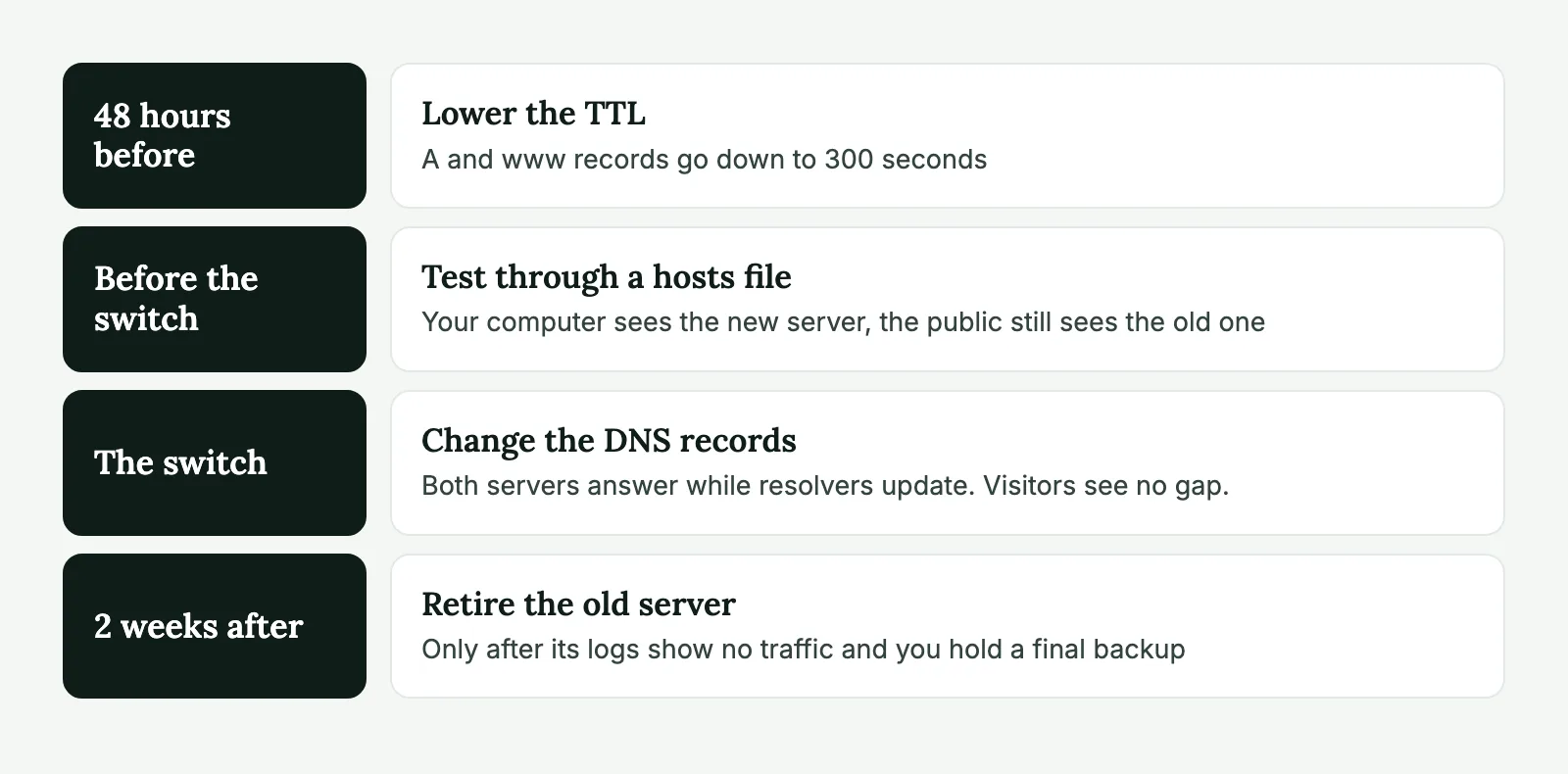
We prefer a hosts file entry to a temporary domain. It makes your computer resolve the real domain to the new IP, so WordPress runs with its real URLs, and no search-replace is needed:
203.0.113.10 example.com www.example.comYour browser will complain about the certificate until the new server has one, which is a good reminder to sort that out now. To test a single URL without touching the hosts file, use curl:
curl -sI --resolve example.com:443:203.0.113.10 https://example.com/Then walk through the site as a visitor would, and as an editor would:
- Main templates on desktop and mobile, compared against the old site in a second browser profile.
- Log in, edit a page, upload an image. File permissions tend to fail here.
- Forms: submit one and see where the email goes. Consider stopping outgoing email on the copy until launch, so it doesn’t send real notifications.
- Permalinks. If inner pages return 404, run
wp rewrite flush. On NGINX, check the rules. - Scheduled jobs, with
wp cron event list. Don’t leave real cron or payment webhooks firing from both servers.
Don’t want to spend a Sunday on this? We run WordPress migrations under your brand, test everything before DNS and watch the site for 7 days after launch.
DNS cutover with a low TTL
TTL tells resolvers how long they can cache a record. If yours is 86400, some visitors will keep hitting the old server for a full day after the change.
Lower the A record (and the www record) to 300 seconds at least 48 hours ahead. That lead time matters: resolvers holding the old value won’t ask again until it expires. Check it with:
dig +noall +answer example.com AThe second column of the answer is the TTL.
On the day:
- Sort out the certificate first. If the new host only issues Let’s Encrypt over HTTP after DNS points at it, use DNS validation or Cloudflare, or accept a few minutes of warnings on a low-traffic site. We don’t accept that on anything important.
- Sync once more if content changed since the copy. Rerun the rsync command and import a fresh database dump.
- Change the records. Copy MX, SPF, DKIM and DMARC exactly if the DNS zone itself is moving. Forgetting those is how a website migration becomes an email outage.
- Watch the access logs on both servers. You’ll see traffic drain from the old one over the next hour or so.
Stores and other sites that write data
While DNS is propagating, a WooCommerce store can take orders on both servers. A database copy can’t merge those later without work. You have three realistic choices:
- Short maintenance window. Put the store in maintenance mode, do the final sync, switch DNS. Checkout stays closed for as long as the final sync takes, so do it at the quietest hour you can find. This is the one we usually pick.
- Maintenance mode on the old server only. Sync, switch DNS, and leave a notice on the old server. Anyone still resolving to it sees the notice rather than placing an order.
- Replay the delta. Export orders created after the cutover from the old server and bring them over by hand. This works when the number is small.
Membership sites, LMS platforms and busy forums have the same problem. So does a blog whose comments you care about, though less urgently.
Post-migration cleanup
Once traffic has moved, go through the leftovers:
wp cache flush
wp rewrite flush
wp cron event run --due-now
Then:
- Purge the CDN and any full-page cache, and warm the main pages by loading them.
- Reinstall object cache on the new server and confirm it connects.
- Set up real cron if the host expects it, and disable WP-Cron with
DISABLE_WP_CRONonce the replacement is working. On most hosts, this is more reliable under traffic. - Point backups and uptime monitoring at the new server. Backup plugins with stored paths often fail silently.
- Update the IP in any firewall, payment or API allowlist. Third-party services that restrict by IP are the classic quiet failure after a move.
- Raise the TTL back to something like 3600 after a few days.
- Run Lighthouse on the main templates. A new host is a good point to look at WordPress speed optimization, since you just changed what the numbers depend on.
Keep the old server for at least two weeks. Delete it only after you’ve confirmed there’s no traffic in its logs and you hold your own backup of its final state. We monitor sites for 7 days after a move, because that’s about how long it takes for weekly reports and other slow scheduled jobs to show whether they still run.
Moving more than one site? The tech stays the same, but scheduling becomes the hard part. We wrote that up as a bulk WordPress migration plan.
If you have a site that needs to move, tell us the old and new host. We’ll send a plan and a quote, and you can stay the only name your client sees.
New host migration FAQ
For a site whose content rarely changes, yes. Both servers serve the same site while DNS propagates, so visitors see no gap. Stores and membership sites need a short freeze or a final sync, because orders placed on the old server during the switch would otherwise be lost.
With a TTL of 300 seconds set at least 48 hours in advance, most visitors reach the new server within minutes. Some resolvers ignore TTL and take longer, which is one reason to keep the old server running for a couple of weeks.
Use the host’s plugin for a small or medium site with no unusual setup. Move it manually with WP-CLI when the site is large, the plugin keeps timing out, or you need exact control over what gets copied.
Only if the URL changes, for example when you test on a temporary domain. If you test with a hosts file entry, the URLs in the database stay correct and there is nothing to replace.