WordPress Migration Checklist: How to Move Client Sites Without Losing SEO
A WordPress migration checklist is boring until the day a client’s organic traffic falls by a third because nobody exported the old URLs before the old server was switched off. We use the list below on every move, from a 10-page brochure site to a 5,000-product store, and it’s the same one behind our WordPress migration service. Only the time changes.
It applies to host-to-host moves and to moves from another platform. Where the two differ, we say so. If you’re moving a site with thousands of pages from another CMS, read our guide to migrating large websites to WordPress alongside this one.
Want it on one page? Download the checklist as a PDF, no email needed.
Before you start: crawl, backups and URL inventory
Everything later depends on this step, because after the switch the old site is gone and you can’t crawl it anymore.
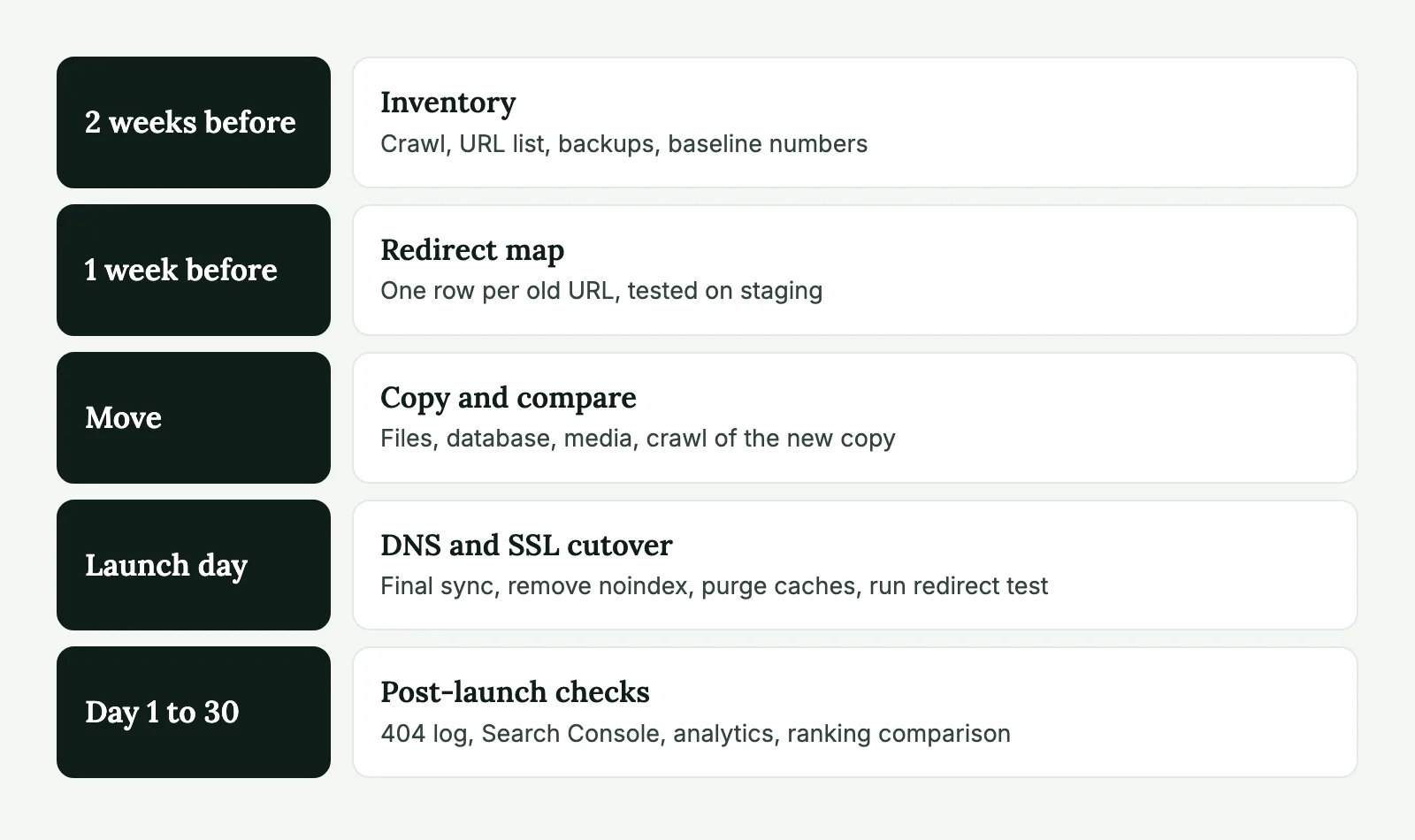
Start with a full crawl of the live site in Screaming Frog or Sitebulb. Save the export. You want every URL with its status code, title, meta description, H1, canonical and word count. Crawlers miss orphan pages, so merge in these sources too:
- the XML sitemaps
- Search Console’s Pages report and the Performance export (16 months of queries and pages)
- top linked pages from Ahrefs or Semrush
- landing pages from GA4
Deduplicate that list and you have the URL inventory. Add two columns: clicks in the last 12 months and referring domains. Now you know which 50 pages deserve manual checks and which 2,000 can be checked by a script.
Then take the backups. Two kinds, stored away from the old host:
wp db export before-migration.sql
tar -czf before-migration-files.tar.gz wp-content
A host’s snapshot is fine as a third copy, but don’t count on it. Once the account is cancelled, the snapshots usually go with it.
Before you touch anything, write down what the site depends on and might not survive the move:
- Forms and where they send, including the SMTP plugin, API keys and any CRM connection
- Anything in
.htaccessor NGINX config, old redirects included. People forget these exist. - WP-Cron events and real cron jobs on the old server
- GA4, Tag Manager, pixels and Search Console verification. A DNS-verified property survives. A file-verified one may not.
- The MX, SPF, DKIM and DMARC records on the domain, copied as text
Record a baseline too. Lighthouse scores for three main templates, the Core Web Vitals report and a screenshot of the Search Console Pages report. When your client asks whether the migration slowed the site down, you’ll want the before numbers.
Build the redirect map
On a host move with identical URLs, you may not need a redirect map at all. Check anyway, because the old site may hold redirects that should come along.
On a platform move or a restructure, the map is the most valuable document in the project. It’s a spreadsheet with one row per old URL:
| Old URL | New URL | Type | Priority | Tested |
|---|---|---|---|---|
| /post/pricing-guide | /blog/pricing-guide/ | 301, one-to-one | High | Yes |
| /post/* | /blog/$1/ | 301, pattern | Medium | Sample |
| /team-2019/ | /about/ | 301, closest match | Low | Yes |
Three rules we don’t bend on:
Every old URL points straight at its final destination. If the old site already has A to B, and the new structure moves B to C, change the first rule to A to C. Chains waste crawl budget, and each hop adds latency for the visitor.
Removed pages redirect to the closest relevant page, never to the homepage in bulk. Google tends to treat mass redirects to the homepage as soft 404s, so you lose the signals you were trying to keep.
Pages with backlinks get a one-to-one rule even when a pattern would cover them. If the pattern breaks later, the pages that matter most still work.
Where the rules live is a real choice. Server-level rules (Apache, NGINX, WP Engine’s Web Rules Engine) are faster and run before PHP. The Redirection plugin is easier for your client’s team to edit and logs 404s, which is useful later. We put big pattern rules on the server and individual rules in the plugin.
Content, media and database move
Do the move on the new server with the old site still live and search engines blocked from the new copy.
On a WordPress-to-WordPress move, the mechanics are in how to migrate WordPress to a new host. What belongs on this checklist is what to verify after the copy:
- Post, page and custom post type counts match the old site.
wp post list --post_type=page --format=countis quicker than clicking around. - Media files open from the new server, not hotlinked from the old one. Search the database for the old domain and for platform CDNs. Webflow and Wix images are the usual leftovers.
- SEO titles, descriptions and canonicals came across. Yoast and Rank Math keep them in post meta, so they travel with the database, but a platform import won’t carry them unless you map them.
- Users, orders, form entries and anything else that changes while you work have a plan for the final sync.
That last point catches people out. A WooCommerce store or a membership site keeps writing to the database after you take your copy, and those orders exist only on the old server. Plan a content freeze or a final delta sync, and tell your client which one it is and when it starts. A short freeze announced in advance is an easy conversation. Lost orders are not.
Before DNS changes, crawl the new copy and compare it with your inventory. A simple spreadsheet diff on URL, title and H1 finds most damage. Look hard at titles that went blank and pages whose word count dropped by half. Those usually mean a shortcode or page builder module didn’t render.
DNS and SSL cutover
Lower the TTL on the A and CNAME records to 300 seconds at least 48 hours before the move. The old TTL has to expire before the new one applies, so doing it an hour before does nothing.
The certificate must be ready before traffic arrives. Some hosts can only issue Let’s Encrypt after DNS points at them, which leaves a window of browser warnings. If that’s your host, use a DNS-validated certificate or put Cloudflare in front, and test it before you switch.
The cutover itself goes in this order:
- Run the final sync, or start the freeze.
- Remove the block on search engines from the new copy. Check
robots.txt, the “Discourage search engines” setting and anynoindexheaders set by the host. - Change the DNS records. Leave MX and the mail-related TXT records alone unless email is moving too.
- Purge every cache you own: page cache, object cache, CDN.
- Confirm that the site is served from the new server with
dig +short example.comand a look at the response headers. - Run the redirect test below.
Pick a quiet hour from the analytics, not from a guess. For a US B2B site, Sunday morning usually works. A store with international customers may have a different answer.
Don’t cancel the old hosting yet. Keep it for at least two weeks as a way back.
Post-launch checks: GSC, sitemaps, 404s and analytics
Run the redirect test right after the switch. This script reads a two-column CSV of old and new URLs, follows the redirects and flags failures and chains:
#!/usr/bin/env bash
# Usage: ./check-redirects.sh redirects.csv
while IFS=, read -r old new; do
  result=$(curl -s -o /dev/null -L --max-redirs 5 -w '%{http_code} %{num_redirects} %{url_effective}' "$old")
  read -r code hops final <<< "$result"
  status=OK
  [ "$code" != "200" ] && status=FAIL
  [ "$final" != "$new" ] && status=FAIL
  [ "$hops" -gt 1 ] && status=CHAIN
  printf '%s\t%s\t%s\t%s\t%s\n' "$status" "$code" "$hops" "$old" "$final"
done < "$1"
Anything other than OK gets fixed the same day. Then work through the list by time.
On launch day:
- Submit forms and confirm the emails arrive, including the ones your client’s team receives.
- On a store, place a test order all the way through payment and refund it.
- Check the live site in GA4 Realtime.
- Run a fresh crawl and look for 404s, redirect chains, mixed content and stray
noindextags. - Submit the XML sitemap in Search Console.
During the first week:
- Check the server error log and the Redirection plugin’s 404 log every day. Real visitors find what crawlers miss.
- Run the Indexing report and URL Inspection on your top 20 pages.
- Confirm backups and scheduled jobs ran on the new server.
At 30 days:
- Compare clicks and impressions per page with the same period before launch. Search Console’s date comparison handles this.
- Review Core Web Vitals against your baseline.
- If the domain changed, use the Change of Address tool once redirects are live, and keep the redirects for at least a year, as Google’s site move guide recommends.
Then hand the site over to someone who will keep looking after it. A new server is a good moment to start white label maintenance if the site doesn’t have any.
Moving a client site soon? Our WordPress migration service runs this whole list under your brand, with 7 days of monitoring after launch.
The mistakes we see most often
Most failed migrations don’t fail because of the file copy. They fail on something small that was nobody’s job.
**noindex left on after launch.** Staging was blocked correctly, the database was copied to production and the setting came with it. Traffic slides for a week before anyone looks. It’s on the list above because it keeps happening.
Trailing slashes and uppercase URLs. The old platform served /About, the new one serves /about/. Each variation needs to resolve in one hop, and your crawl export will show which ones get real traffic.
Internal links still pointing at old URLs. Redirects hide this from visitors, but the site now redirects itself on every page. After a restructure, replace the old paths in the content with wp search-replace, starting with --dry-run.
Images on someone else’s CDN. Example: a site moves off Webflow, everything looks fine, and two months later the Webflow subscription ends and old blog posts lose their images. Search post_content for the old CDN hostname before launch.
Email breaks along with DNS. Someone moves the nameservers and forgets to recreate the MX records. Your client finds out when a customer calls. Copy every DNS record to the new zone first.
Search Console left behind. A URL-prefix property verified by an HTML file stops verifying if that file wasn’t moved. Use a domain property where you can.
The WordPress migration checklist, ready to download
The one-page PDF has every step from this article in order, with space for initials and dates. Agencies tend to paste it into their project tool as a template, so each migration gets its own copy and an owner per line.
If you’d rather hand the whole thing off, send us the site and the new host. We’ll come back with a plan and a quote. Your client doesn’t need to know we exist.
Migration checklist FAQ
As long as you can, and at least a year. That is what Google’s site move guide recommends. If the old domain is being retired, keep paying for it for at least that long, or the redirects die with it.
Not for a host-to-host move on the same domain. You still need to crawl the site before and after, because rewrite rules, trailing slashes and HTTPS settings can change the behavior of URLs even when the paths stay identical.
Only when the domain or subdomain changes. It doesn’t apply to a new host on the same domain, to HTTP to HTTPS moves, or to URL changes inside one domain. Use it after the redirects are live.
Technical failures show up in the first days as 404s and indexing errors. Ranking movement takes longer. Expect some wobble for a few weeks on a move with URL changes, and compare against the same pages before launch, not against the whole site.