WooCommerce Performance for Large Catalogs: A Developer’s Playbook

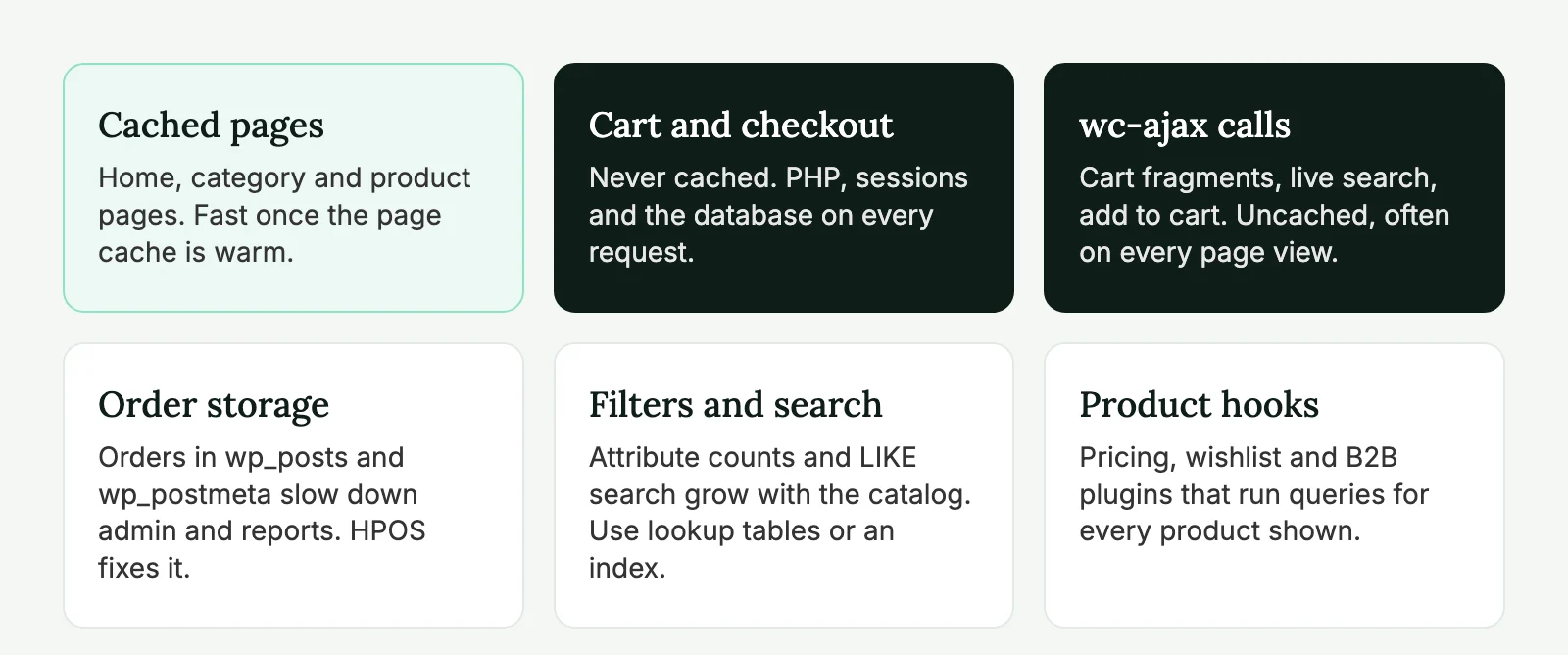
WooCommerce performance optimization on a big catalog is a different job from speeding up a brochure site. Page caching hides most problems on a 50-product store. On a store with 20,000 products, 80,000 orders and a filter sidebar, the slow parts are exactly the pages a cache can’t serve: cart, checkout, account, AJAX calls and filtered category views.
This is the playbook we use when an agency sends us a store that “got slow”. It’s ordered the way we work: measure, fix the database, fix the queries, then the front end and hosting. If you’d rather hand the store over, that’s what our white label WooCommerce development team does every week.
What to check first, by store size
The size of the catalog changes where the time goes. These are rough categories, not technical limits, but they tell you where to start.
| Store size | Check first |
|---|---|
| Up to ~1,000 products | Plugins, images, page caching, third-party scripts |
| 1,000–10,000 | Database queries, filters, search, autoloaded options |
| 10,000–50,000 | HPOS, Redis object cache, Action Scheduler, lookup tables |
| 50,000+ | Database indexes, a search index, PHP workers, infrastructure |
Measure before you touch anything
Install Query Monitor on staging (or production, for admins only) and load the slow pages. It shows the number of queries, the slowest ones and the plugin or theme function that called them. For the server side, check the access log for how many wc-ajax requests hit PHP per minute. A theme that calls get_refreshed_fragments on every page view can double the uncached load by itself.
Write the numbers down. You’ll want the same table after the work.
| What to measure | Tool | Where |
|---|---|---|
| Server response time (TTFB) on uncached pages | Browser dev tools, curl -w | Cart, checkout, a filtered category |
| Database queries and their time | Query Monitor | Product page, category page, checkout |
| AJAX calls per page view | Dev tools Network tab, access log | Home, category, product |
| Core Web Vitals | PageSpeed Insights, Search Console | Home, category, product |
| Pending and failed background jobs | WooCommerce → Status → Scheduled Actions | Admin |
Query Monitor’s official site at querymonitor.com explains each panel. The two we open first are “Queries by Component”, which shows which plugin or theme runs the most queries, and “Duplicate Queries”, which usually points at a loop that loads the same data for every product.
From symptom to fix
Most slow stores show one of a few symptoms. This table is how we go from what the client reports to what we change.
| Symptom | Likely cause | Tool | Fix |
|---|---|---|---|
| Checkout takes 3+ seconds to load | No object cache, heavy plugins on cart hooks, slow payment or shipping API calls | Query Monitor, New Relic or server logs | Redis, remove or replace plugins, cache shipping rates |
| Admin order list is slow | Orders in wp_postmeta, no HPOS | Query Monitor in the admin | Switch to HPOS |
| Filtered category pages are slow | Attribute filtering without the lookup table, product counts | Query Monitor, slow query log | Lookup table, filter plugin with its own index |
| Every page is slow for logged-in or cart visitors | Cache bypassed by session cookies, cart fragments | Response headers, Network tab | Cache rules, dequeue fragments |
| Store gets slower every month | Growing Action Scheduler tables, autoloaded options, transients | Database table sizes | Cleanup, shorter retention |
| Good TTFB, poor LCP | Images, fonts, sliders, third-party scripts | PageSpeed Insights | Front-end work (see below) |
Example: a 20,000-product store
Example: a store that sells spare parts to trade customers. About 20,000 products, most of them variable, 80,000 orders over six years, a B2B pricing plugin, a filter plugin and 15 plugins in total that hook into product loading. The agency’s complaint: “Checkout is slow and the admin is unusable on Mondays.”
In Query Monitor, a filtered category page ran about 1,200 queries. Three things stood out:
| What Query Monitor showed | Caller | Time per page |
|---|---|---|
| ~480 queries for price rules, four per product shown | B2B pricing plugin | 0.9 s |
A meta_query sorting by _price on wp_postmeta | Theme function for the “sort by price” dropdown | 0.7 s |
| Attribute counts for each filter option | Filter plugin, lookup table turned off | 0.6 s |
The changes, in order: HPOS with a week of compatibility mode, the attribute lookup table, the theme’s sort rewritten to use WooCommerce’s own ordering, price rules cached per customer group in Redis, cart fragments removed from pages that didn’t need them, and Action Scheduler history cut from 30 days to 7.
| Measurement | Before | After |
|---|---|---|
| TTFB, filtered category (uncached) | 2.8 s | 0.8 s |
| TTFB, checkout | 3.4 s | 1.1 s |
| Queries on a filtered category | ~1,200 | ~210 |
| Admin orders screen | 9 s | 1.3 s |
wc-ajax requests per page view | 2 | 0 on catalog pages |
| LCP on mobile, product page | 4.1 s | 2.4 s |
The biggest single gain came from the pricing plugin, not from caching. That’s typical: the slow part is usually one or two pieces of code, and Query Monitor finds them in an hour.
HPOS and the database
Switch to High-Performance Order Storage
High-Performance Order Storage (HPOS) moves orders out of wp_posts and wp_postmeta into their own tables with proper indexes. It has been the default for new stores since WooCommerce 8.2, and WooCommerce’s HPOS documentation lists what changes for extensions. Many older stores still run on the old storage, and on a store with tens of thousands of orders that’s where admin order screens and reports lose most of their time.
The switch is in WooCommerce → Settings → Advanced → Features. Do it on staging first:
- Check that every active plugin declares HPOS compatibility. WooCommerce lists the ones that don’t on the Features screen.
- Turn on compatibility mode, which keeps the old and new tables in sync, and let the sync finish.
- Verify the data, then switch the authoritative storage to HPOS.
- Keep compatibility mode on for a week or two in production, then turn it off.
With a lot of orders, run the sync from the command line instead of waiting for the background job:
wp wc hpos count_unmigrated
wp wc hpos sync --batch-size=500
wp wc hpos verify_cot_data
The plugins that break on HPOS are usually old ones that read _order_total with get_post_meta() instead of the order object. If a custom plugin does that, fix it before the switch. It’s usually a few lines.
Clean up what the database collects
Large stores collect junk. Check these:
- Autoloaded options. WordPress loads them on every request. Anything above a megabyte or two is worth a look:
SELECT option_name, LENGTH(option_value) FROM wp_options WHERE autoload IN ('yes','on') ORDER BY 2 DESC LIMIT 20; - Expired transients, including thousands of
wc_var_pricesentries on stores with many variable products. - Action Scheduler history. Completed and failed actions stay for 30 days by default. On busy stores that table reaches millions of rows. Shorten the retention with the
action_scheduler_retention_periodfilter and look at what keeps failing. - Old sessions in
wp_woocommerce_sessionsif a bot crawled add-to-cart links.
Product queries and filters
Use the lookup tables
WooCommerce keeps lookup tables so it doesn’t have to query wp_postmeta for everything. wc_product_meta_lookup holds price, stock and rating for sorting and price filters. The product attributes lookup table makes attribute filtering faster. Turn the second one on in WooCommerce → Settings → Products → Advanced (“Use the product attributes lookup table for catalog filtering”), and regenerate it from WooCommerce → Status → Tools if the store was imported.
Custom code often ignores these tables. A theme or plugin that builds its own meta_query on _price or _stock_status sends every request back to wp_postmeta. Search the theme for meta_query and '-1' first. A posts_per_page => -1 on a 20,000-product category will take the server down sooner or later.
// Slow: loads every product ID in the category into memory.
$ids = get_posts( [ 'post_type' => 'product', 'posts_per_page' => -1, 'fields' => 'ids', 'product_cat' => 'shoes' ] );

// Better: let WooCommerce paginate and use its own data store.
$result = wc_get_products( [
	'category' => [ 'shoes' ],
	'limit'    => 24,
	'page'     => max( 1, get_query_var( 'paged' ) ),
	'paginate' => true,
	'return'   => 'ids',
] );
Filters and search
Filter plugins differ a lot on big catalogs. Some count products for every option of every attribute on each page load, which means dozens of extra queries. If a filtered category is slow, turn off product counts first and see what changes. If the client needs the counts, use a filter plugin that keeps its own index (FacetWP and similar) and reindexes on product save.
The default WordPress search runs LIKE queries over titles and content. It works for a few thousand products and struggles beyond that, especially with SKU search added. Relevanssi (its own index in MySQL) or ElasticPress (Elasticsearch, often available from the host) are the usual answers.
Plugins that run on every product
Dynamic pricing, B2B price lists, wishlists, “frequently bought together” and some currency plugins hook into price and product loading. On a category page with 24 products, a hook that runs three queries per product adds 72 queries before the page is done. Multiply that by variations on a product page and you see where a 3-second TTFB comes from.
Query Monitor’s “Queries by Component” view shows which plugin is responsible. Once you know, there are usually three options. Check the plugin’s settings for a cache or “calculate on cart only” mode. Replace it with something lighter, or with a few lines of custom code if the client uses one rule out of fifty. Or cache the expensive result yourself in the object cache, keyed by product and customer group, and clear it when prices change.
Cart fragments and AJAX
Cart fragments keep the header cart count up to date on cached pages by calling ?wc-ajax=get_refreshed_fragments. That call can’t be cached, so it runs PHP and loads the cart on every page view. Since WooCommerce 7.8 core no longer loads the script on every page, but plenty of themes and page builders still enqueue wc-cart-fragments themselves.
If the header doesn’t need a live cart count, or the theme updates it another way, dequeue the script outside the cart and checkout:
add_action( 'wp_enqueue_scripts', function () {
	if ( is_cart() || is_checkout() ) {
		return;
	}
	wp_dequeue_script( 'wc-cart-fragments' );
}, 20 );
Test it on staging with a full page cache on. Add a product, go to another page and check that the cart count still makes sense. If it doesn’t, keep fragments but load them only after the visitor has added something to the cart (the woocommerce_items_in_cart cookie tells you).
Look at other AJAX calls too. Live search, “recently viewed”, currency switchers and some analytics plugins all add uncached requests. Each one is small. Ten of them per page view on a busy day are not.
Got a store that’s slow at checkout? Our WooCommerce development team can run this audit under your brand and send you the findings with an estimate in hours.
Caching rules for stores
Full page caching is still the biggest win for catalog pages, as long as it never serves one customer’s cart to another. The rules:
- never cache
/cart/,/checkout/,/my-account/or anything withwc-ajaxin the query string; - bypass the cache when the
woocommerce_items_in_cartorwp_woocommerce_session_cookies are set; - purge product and category pages when stock or price changes, not the whole site;
- keep a persistent object cache (Redis) for everything the page cache can’t serve.
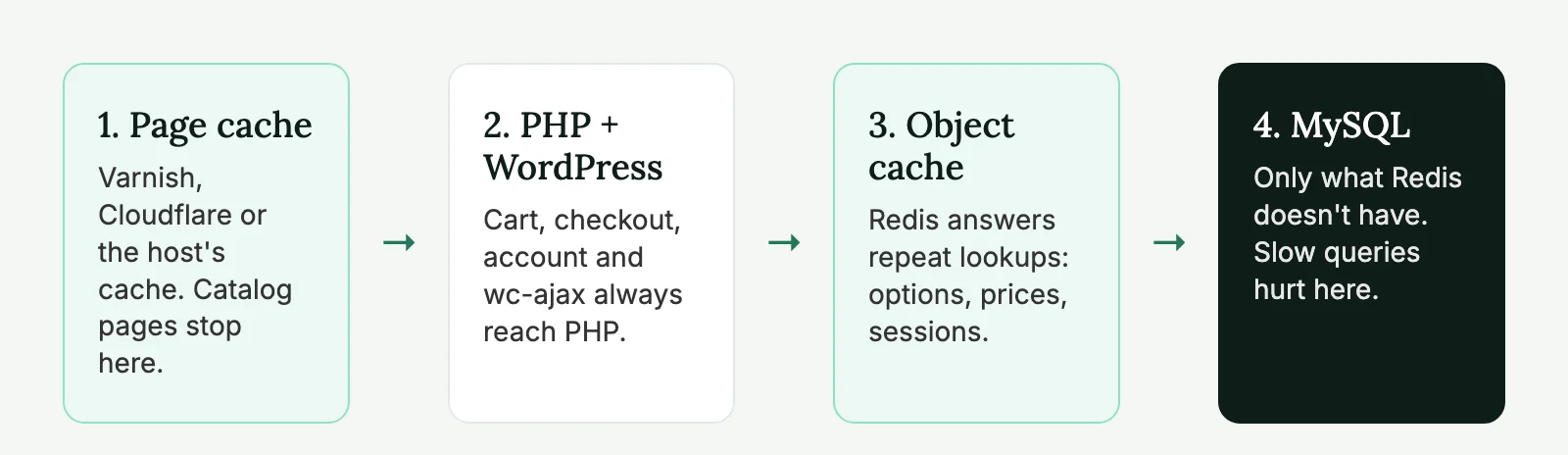
Managed hosts handle most of this. WP Engine and Kinsta exclude WooCommerce pages by default. On Cloudways, Breeze and Varnish need the WooCommerce exclusions checked by hand after setup. Redis object caching is the one we’d add to every large store. It helps the uncached pages that matter most: cart, checkout and admin.
Server speed vs front-end speed
Clients say “the site is slow” about two different problems, and the fixes don’t overlap much. Core Web Vitals help to tell them apart.
TTFB (time to first byte) is the server: PHP, database, caching, hosting. Everything above this section is about TTFB. LCP (largest contentful paint) starts with TTFB, then adds the time to load the main image or heading. A product page with 0.4 s TTFB can still have a 4 s LCP if the gallery image is 1.5 MB. INP (interaction to next paint) is about JavaScript: swatches, mini carts and chat widgets that block the main thread when someone taps. CLS (layout shift) comes from images without dimensions, late-loading banners and cookie notices.
So check TTFB first. If it’s under about 0.8 s on uncached pages and the store still feels slow, the work is on the front end.
Front end on product and category pages
Big stores tend to have heavy product pages: galleries, zoom, swatches, reviews, related products, upsells, chat widgets. Things to check:
- Image sizes. Product thumbnails in category grids should come from a size close to how they’re shown, with
srcset, not a 1200 px original scaled down in the browser. - Variation swatches. Some plugins put the data for every variation into the page as JSON. Products with 300 variations end up with a few hundred kilobytes of HTML. WooCommerce has a threshold (
woocommerce_ajax_variation_threshold, 30 by default) above which variations load by AJAX instead. - Third-party scripts. Reviews, chat and tracking scripts usually cost more than WooCommerce itself on the front end. Load them after interaction where you can.
Our WordPress speed optimization checklist covers the general front-end work, and Core Web Vitals for WordPress explains which metric each fix moves.
Hosting requirements
Shared hosting works until it doesn’t, and with WooCommerce it stops working early. For a large catalog we look for:
- PHP 8.2 or newer, with OPcache;
- Redis or Memcached for the object cache;
- enough PHP workers for uncached traffic. A sale or an email campaign sends everyone to cart and checkout at the same time, and that’s when workers run out;
- a real server cron instead of WP-Cron, so Action Scheduler jobs don’t run on visitor requests;
- MySQL 8 with enough memory for the
wp_postmetaindexes.
If the store has outgrown its plan, moving it is often cheaper than more optimization. Our WordPress speed optimization service starts with a free short audit that says which of the two the store needs.
Common mistakes
These cost agencies the most time on store speed projects:
- Installing another caching plugin instead of finding the cause. Two page caches fight each other, and neither helps checkout.
- Removing cart fragments without testing the cart. The header count stops updating and customers think the add-to-cart button is broken.
- Adding Redis without measuring before and after. It usually helps, but if the slow part is one bad query, Redis just caches the wrong problem for a while.
- Switching to HPOS without checking extensions. An old plugin that reads order meta directly will silently stop seeing new orders.
- Testing only on staging with ten orders. Most performance problems only show up with production data.
WooCommerce performance optimization checklist
- Measure TTFB on cart, checkout and a filtered category, plus queries per page in Query Monitor.
- Check plugins for HPOS compatibility, then switch on staging with compatibility mode.
- Clean autoloaded options, expired transients and Action Scheduler history.
- Turn on the product attributes lookup table and regenerate it.
- Remove
posts_per_page => -1and custommeta_querycalls on price and stock. - Check filter counts and search on the real catalog size.
- Dequeue cart fragments where the theme doesn’t need them.
- Confirm cache exclusions for cart, checkout, account and
wc-ajax. - Add Redis object cache and a server cron.
- Fix product images and variation data on the heaviest product pages.
- Measure again and compare with the first table.
Background jobs deserve their own article. If the store syncs stock or prices with an ERP, read syncing WordPress with external data, which covers Action Scheduler, cron and webhooks in detail.
WooCommerce performance FAQ
Because the slowest pages can’t be cached. Cart, checkout, my account and AJAX requests like cart fragments run PHP and query the database for every visitor. On big stores, order storage, product filters and plugins that run on every product load add to that.
For most stores with a lot of orders, yes. HPOS stores orders in dedicated tables, which makes order screens and reports faster. Check that all plugins are compatible, test on staging and run compatibility mode for a while before turning it off.
Usually, if the theme doesn’t rely on them for the header cart count. Test with the page cache on: add a product, open other pages and check the count. If it breaks, load fragments only after something has been added to the cart.
Stores with tens of thousands of products and hundreds of thousands of orders run fine on WooCommerce, with HPOS, a persistent object cache, a proper search index and hosting with enough PHP workers. The limit is usually the plugins and custom code, not WooCommerce core.