Plugin or functions.php? Where Custom Functionality Should Live on Client Sites
Plugin vs functions.php is one of those decisions nobody makes on purpose. A developer needs a custom post type on Friday afternoon, functions.php is already open, and the code goes there. Two years later the client switches themes and their case studies disappear from the site.
This article is about where custom code should live on client sites, and how to clean up when it’s already in the wrong place. It matters most at handover, when someone else inherits the site, and it’s one of the first things we check in a code review before our custom WordPress plugin development team takes over a project.
Why it matters at handover
A theme controls how a site looks. When code that changes what the site does lives in the theme, three things go wrong sooner or later:
- A theme switch or redesign removes features. Custom post types, shortcodes, redirects and integrations stop working the moment another theme is activated, and the content behind them looks lost.
- A theme update overwrites changes. If the code was added to a parent theme instead of a child theme, the next update deletes it.
- Nobody can find anything. A 3,000-line
functions.phpmixes enqueueing scripts, WooCommerce tweaks, a CRM integration and a fix for a plugin conflict from 2021. The next developer reads all of it to change one thing.
A client who pays for a redesign doesn’t expect to lose their booking form. An agency that hands over a site with everything in functions.php will get that phone call, usually from the next developer.
Theme-dependent vs site-dependent code
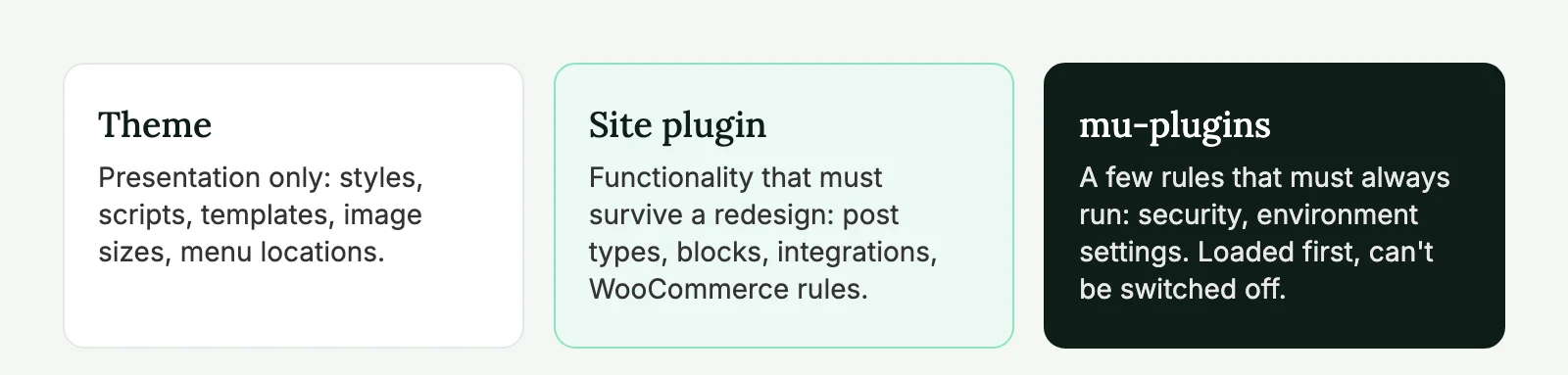
The test we use is simple. Ask: if the client switched to a different theme tomorrow, should this keep working?
If yes, it’s site functionality and belongs in a plugin. If no, it’s presentation and belongs in the theme.
| Belongs in the theme | Belongs in a plugin |
|---|---|
| Enqueueing the theme’s CSS and JS | Custom post types and taxonomies |
| Image sizes used by the templates | Shortcodes and blocks editors put in content |
| Menu locations and widget areas | ACF field groups and their Local JSON files |
| Template tags and helpers for markup | Integrations with CRMs, ERPs, payment services |
add_theme_support() calls | Redirects, user roles and capabilities |
| Block styles and editor styles tied to the design | WooCommerce business rules (pricing, shipping, checkout fields) |
| Scheduled tasks and REST API endpoints |
Two cases cause most of the arguments on real projects: custom blocks and ACF field groups. Both hold content editors create, and both are tied to the design. We split them as shown below.
Splitting a custom Gutenberg block
Take a “Testimonial” block built with ACF Pro: a quote, a name, a company and a photo. It has five parts, and they don’t all belong in the same place.
| Part | Where it lives | Why |
|---|---|---|
block.json (name, attributes, supports) | Site plugin | Content saved in posts refers to the block name. If the block stops being registered, editors see “This block is not supported”. |
| ACF field group | Site plugin (acf-json/) | The data inside every testimonial depends on it. |
render.php template | Site plugin | Without it the block renders nothing, in any theme. |
| Base CSS (layout, spacing) | Site plugin, next to block.json | The block should look acceptable in any theme. |
| Colors, fonts, design tokens | Theme (theme.json or CSS custom properties) | This is the part a redesign should change. |
| Editor-only JavaScript | Site plugin | Part of how the block works, not how the site looks. |
The trick that makes this work is CSS custom properties. The block’s stylesheet in the plugin uses variables with fallbacks, and the theme sets the values:
/* plugin: blocks/testimonial/style.css */
.acme-testimonial {
	padding: 2rem;
	border-radius: var(--acme-radius, 12px);
	background: var(--wp--preset--color--surface, #f4f4f4);
	font-family: var(--wp--preset--font-family--body, inherit);
}
// plugin: registers every block folder that has a block.json.
add_action( 'init', function () {
foreach ( glob( ACME_CORE_PATH . 'blocks/*/block.json' ) as $file ) {
register_block_type( dirname( $file ) );
}
} );After a redesign, the new theme defines surface in its theme.json palette and the testimonials pick up the new look. Nobody has to touch 140 posts.
ACF field groups, post types and Local JSON
On agency sites built with ACF, field groups are where most of the “where does this go” questions end up. Our rules:
- Register custom post types and taxonomies in the site plugin, in code, not through a UI plugin. Code moves with Git; settings in the database don’t.
- Save all ACF field groups as Local JSON inside the site plugin. That puts them in version control and lets staging and production load the same fields without exporting anything by hand.
- Use ACF’s sync screen only to pull JSON changes into the database on a site, never as the main way of moving fields.
Two filters point ACF at the plugin folder:
add_filter( 'acf/settings/save_json', fn() => ACME_CORE_PATH . 'acf-json' );

add_filter( 'acf/settings/load_json', function ( array $paths ): array {
	$paths[] = ACME_CORE_PATH . 'acf-json';
	return $paths;
} );
We keep layout fields there too, even the ones that only toggle a background color. Splitting field groups between theme and plugin sounds tidy, but in practice nobody remembers which half lives where, and a redesign rebuilds the layout fields anyway. ACF’s Local JSON documentation covers the details.
Site-specific plugins and mu-plugins
There are two good homes for site functionality: a regular plugin made for this one site, and a must-use plugin.
A site-specific plugin
A plugin in wp-content/plugins/ with a header and a clear name, like clientname-core. It can be activated and deactivated, it has activation hooks, and it shows up in the plugin list, so the next developer sees it right away.
<?php
/**
 * Plugin Name: Acme Core
 * Description: Site functionality for acme.com: post types, integrations, business rules.
 * Version:     1.0.0
 * Author:      Your Agency
 * Requires PHP: 8.1
 * Text Domain: acme-core
 */

defined( 'ABSPATH' ) || exit;

define( 'ACME_CORE_PATH', plugin_dir_path( __FILE__ ) );

require ACME_CORE_PATH . 'includes/post-types.php';
require ACME_CORE_PATH . 'includes/integrations/hubspot.php';
require ACME_CORE_PATH . 'includes/woocommerce.php';
This is our default for most client sites.
Must-use plugins
Files in wp-content/mu-plugins/ load automatically, before regular plugins, and can’t be deactivated from the admin. That makes them right for code that must always run: security rules, environment settings, code other plugins depend on. It also makes them easy to forget, because they only show up in a separate “Must-Use” tab in the plugin list.
Some details catch people out. WordPress only loads PHP files directly inside mu-plugins/, not in subfolders, so a larger mu-plugin needs a loader file. Activation and deactivation hooks don’t run. And some managed hosts put their own files there, so check before you clean up.
<?php
// wp-content/mu-plugins/load-acme.php
// WordPress ignores subfolders in mu-plugins, so load the real code explicitly.
require WPMU_PLUGIN_DIR . '/acme-security/acme-security.php';
We keep mu-plugins small: a few rules that must never be switched off by a client clicking around in the admin. Everything else goes into the regular site plugin. The Plugin Handbook and the must-use plugins page in WordPress’s docs have the full details on loading order.
What about code snippet plugins?
Plugins like Code Snippets store PHP in the database and run it from there. They’re fine for a site owner adding two small tweaks without FTP access. On a site an agency maintains, we avoid them. The code isn’t in version control, it doesn’t move with a Git deploy, and a syntax error saved in the admin can take the site down until someone disables the snippet in the database.
Structure of a clean functionality plugin
A site plugin doesn’t need a framework. It needs to be easy to read for someone who has never seen it. Here’s the layout from a real agency project (renamed): a B2B company site with case studies, a resource library, 18 custom blocks, a CRM integration and a small WooCommerce shop for paid reports. The theme sits next to it.
wp-content/
├── plugins/acme-core/              // everything that must survive a redesign
│   ├── acme-core.php               // plugin header, constants, loads includes/
│   ├── includes/
│   │   ├── post-types.php          // case_study, resource, team_member + taxonomies
│   │   ├── acf.php                 // Local JSON paths, options pages
│   │   ├── blocks.php              // registers every folder in blocks/
│   │   ├── integrations/
│   │   │   ├── crm.php             // form submissions → CRM, queued
│   │   │   └── crm-settings.php    // API keys read from wp-config.php
│   │   ├── woocommerce/
│   │   │   ├── checkout.php        // VAT number field, company name rules
│   │   │   └── downloads.php       // report access after purchase
│   │   ├── seo.php                 // schema additions through Yoast filters
│   │   └── cron.php                // scheduled cleanups and syncs
│   ├── blocks/
│   │   └── testimonial/            // block.json, render.php, style.css, fields
│   ├── acf-json/                   // every field group, in Git
│   └── README.md                   // one line per file, plus deploy notes
├── themes/acme/                    // everything a redesign should replace
│   ├── functions.php               // ~120 lines: supports, menus, assets, image sizes
│   ├── theme.json                  // colors, fonts, spacing used by blocks
│   ├── templates/ and parts/       // page layouts
│   └── assets/                     // CSS, JS, fonts, icons
└── mu-plugins/
    ├── acme-loader.php             // loads acme-guard/ (subfolders aren't auto-loaded)
    └── acme-guard/                 // blocks file editing, hides users endpoint
The functions.php in that project is about 120 lines. When we took the site over, it was 2,000.
A few habits make a big difference. Prefix every function, class, option and hook with the plugin’s slug. Keep secrets out of the code (use constants in wp-config.php or environment variables). Write a README with one line per file. And register scheduled events on activation, so they don’t get registered on every page load.
register_activation_hook( __FILE__, function () {
	if ( ! wp_next_scheduled( 'acme_daily_sync' ) ) {
		wp_schedule_event( time(), 'daily', 'acme_daily_sync' );
	}
} );

register_deactivation_hook( __FILE__, function () {
	wp_clear_scheduled_hook( 'acme_daily_sync' );
} );
Inherited a site with everything in functions.php? Our custom plugin development team can move it into a clean site plugin, under your agency’s name, with a short README for the next developer.
Moving code out of functions.php
Moving code is low risk if you do it in small steps on staging. The order we follow:
- Read the whole
functions.phpand sort each block into “theme” or “site”. Mark anything you don’t understand. Those blocks are where the surprises are. - Create the site plugin with an empty structure and activate it on staging.
- Move one group at a time, starting with the simplest (usually post types). Cut from the theme, paste into the plugin, load the site, check the admin. Never leave a function in both places: PHP will throw a fatal “cannot redeclare” error.
- Watch for code that depends on the theme. If a moved function calls a theme helper, either move the helper too or make the plugin check that it exists.
- Check hook timing. Code in
functions.phpruns after plugins load. Most code doesn’t care, but anything that relied on that order (for example, checking whether another plugin’s function exists at load time) should hook intoplugins_loadedorinit. - Deploy the plugin and the trimmed theme together, then check the pages and features that used the moved code.
Custom post types keep their content when you move their registration, as long as the post type name stays the same. Permalinks need a flush (save Settings → Permalinks once) if the rewrite rules changed.
Before and after
Here’s a typical piece of that 2,000-line file. Three unrelated things sit next to each other, and only one of them belongs in the theme:
// functions.php, around line 1,240 (before)
add_action( 'init', function () {
	register_post_type( 'case_study', [ 'public' => true, 'label' => 'Case studies', 'has_archive' => true, 'supports' => [ 'title', 'editor', 'thumbnail' ] ] );
} );

add_action( 'wpcf7_mail_sent', 'send_lead_to_crm' );
function send_lead_to_crm( $form ) {
	// 60 lines: reads the submission, posts it to the CRM API with a key hardcoded here.
}

add_action( 'wp_enqueue_scripts', function () {
	wp_enqueue_style( 'theme-main', get_template_directory_uri() . '/assets/css/main.css', [], '2.4.1' );
} );
After the move, the post type and the integration live in the plugin with a prefix, the key comes from wp-config.php, and the theme keeps only its stylesheet:
// plugins/acme-core/includes/post-types.php (after)
add_action( 'init', function () {
	register_post_type( 'case_study', [ 'public' => true, 'label' => 'Case studies', 'has_archive' => true, 'supports' => [ 'title', 'editor', 'thumbnail' ] ] );
} );

// plugins/acme-core/includes/integrations/crm.php (after)
add_action( 'wpcf7_mail_sent', 'acme_send_lead_to_crm' );
function acme_send_lead_to_crm( $form ): void {
	if ( ! defined( 'ACME_CRM_KEY' ) ) {
		return; // Not configured on this environment (local, staging).
	}
	// Same logic as before, with the key from wp-config.php and the request queued.
}
Renaming the function with the plugin’s prefix during the move also avoids the “cannot redeclare” error if the old code is still deployed somewhere for a few minutes.
Different projects, different splits
The rule stays the same, but where the line falls depends on the kind of site.
| Project | Theme holds | Site plugin holds |
|---|---|---|
| Custom classic theme with ACF | Templates, block markup partials, CSS | Post types, field groups, integrations |
| Block theme (FSE) | theme.json, templates, patterns, block styles | Custom blocks, post types, block bindings |
| WooCommerce store | Template overrides and styling | Checkout fields, pricing rules, ERP sync, order logic |
| Small marketing site | Nearly everything | Often nothing at all |
| Headless WordPress | Little or nothing | Post types, REST or GraphQL fields, previews, rebuild webhooks |
Patterns in a block theme are a common trap. They feel like content, but once inserted they’re just blocks in the post. Keep patterns in the theme and the custom blocks they use in the plugin.
When functions.php is fine
Not everything needs a plugin, and a site plugin is one more moving part. We leave code in the theme when:
- the site is a small brochure or campaign site that will be rebuilt, not redesigned, in two or three years;
- the code only changes presentation, even if it’s PHP (image sizes, excerpt length, a body class);
- the client’s own team manages the theme and won’t maintain a plugin.
The opposite mistake exists too. Fifteen tiny plugins, one per feature, are harder to follow than one site plugin with folders. One site plugin per project is our rule, plus mu-plugins only for what must never be switched off.
The trouble starts with business logic. If the site makes money, collects leads or talks to another system, that code should outlive the theme. Our article on when to build a custom WordPress plugin goes into the other side of the decision: when to use an existing plugin instead of writing code at all.
Checklist before handover
- Theme contains only presentation code: assets, image sizes, menus, templates.
- All site functionality lives in one clearly named site plugin, in version control.
- Mu-plugins are limited to code that must never be switched off, with a loader for subfolders.
- No PHP stored in snippet plugins on sites the agency maintains.
- Functions, options and hooks use a unique prefix.
- Secrets live in
wp-config.phpor the environment, not in the code. - Scheduled events are registered on activation and cleared on deactivation.
- A README says what each file does.
If the plugin will grow into something bigger, with admin screens, integrations or its own data, the hours change a lot. Our custom WordPress plugin cost breakdown shows typical ranges by type. For plugins that pull data from other systems on a schedule, see syncing WordPress with external data.
Plugin vs functions.php FAQ
Ask whether it should keep working after a theme change. If yes, such as custom post types, shortcodes, integrations or WooCommerce rules, put it in a plugin. If it only affects how the current theme looks, functions.php is the right place.
A small plugin made for one site that holds its functionality: post types, integrations, business rules. It lives in wp-content/plugins, is kept in version control and survives redesigns because it doesn’t depend on the theme.
For small pieces of code that must always run and should never be deactivated from the admin, like security rules or environment settings. Remember that WordPress only loads files directly inside the mu-plugins folder and that activation hooks don’t run there.
In a plugin. Posts store the block name, so if the block stops being registered after a theme change, editors see an unsupported block and visitors lose the content. Keep colors and fonts in the theme through theme.json or CSS variables, so a redesign can still change the look.
No. The content stays in the database. As long as the post type name and settings stay the same, the posts appear again once the plugin registers the type. Save the permalink settings once to refresh rewrite rules.